


Cloud Gallery - Photo Editor
4.7247.00 Reviews
App Specs
- Version
- 3.0.3
- Updated On
- License
- Free
- Downloads
- 1,000,000+
- Developer
- Photo & Video Editors - Instant Solution
- Categories
- Photography
- Platform
- Android
Screenshots


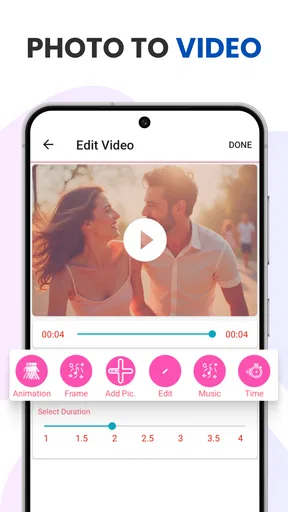
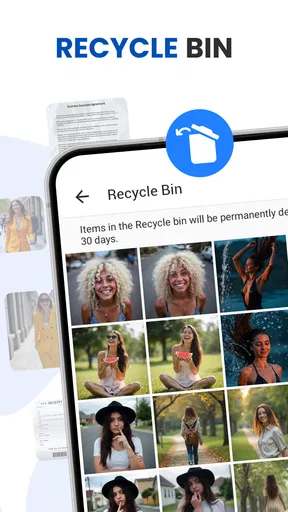
 Analysis by AppCompare
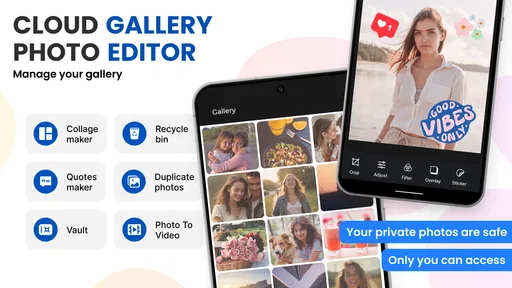
When a phone’s camera roll fills up with screenshots, family pictures, and half-forgotten snapshots, even finding one image can become a chore. I like the idea behind Cloud Gallery - Photo Editor: make browsing and sorting a photo collection feel less like digging through a pile. It’s a free photography app from Photo & Video Editors - Instant Solution, and its focus on albums, private pictures, and cloud backup gives it a more practical purpose than an editor built mainly for effects.
What “faster” should mean in everyday use
A gallery feels fast when I can get to the right picture without waiting through layers of menus or trying to remember where I put it. Cloud Gallery’s appeal is its straightforward approach to browsing and album management. That kind of simplicity can save more time over a week than an elaborate editing screen, especially if I mostly want to find, sort, and share pictures.
I would judge speed here by ordinary tasks: opening a recent photo, making a useful album, or locating an older image when someone asks for it. A tidy gallery can make those jobs feel lighter, but the experience still depends on the size of a collection and the phone being used. I wouldn’t assume cloud access makes every picture instantly available in every situation; it is worth checking that an important image is accessible before relying on it away from a connection.
Busy libraries need a little care
The app is most appealing when a camera roll has become a mixture of different kinds of images. Rather than treating every photo as something to edit, I’d use albums to separate personal pictures, travel, receipts, and images I plan to share. That gives the gallery a simple structure without forcing me to reorganize everything at once.
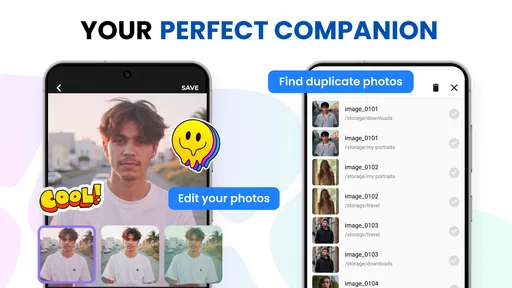
One practical workflow is to sort a small batch after an outing instead of tackling the whole library. I’d move the pictures I want to keep together into an album, remove obvious duplicates using the phone’s usual controls if needed, and then decide which images merit a closer edit. Doing this in short passes makes organization less daunting and reduces the chance of accidentally moving or overlooking a picture during a major cleanup.
For a crowded collection, the trade-off is that organization only pays off if I keep using it. Albums can make a library easier to navigate, but a dozen nearly identical folders can become another kind of clutter. I’d start with a few broad groups and add more only when I repeatedly struggle to find a particular type of photo.
Cloud backup is useful, but not magic
Cloud backup can be reassuring when a phone is lost, damaged, or running low on space, but I treat any cloud-based gallery as one part of a backup routine rather than a reason to delete every local copy immediately. Before clearing space, I’d check that the pictures I care about are actually backed up and that I can retrieve them. For irreplaceable family photos, keeping another copy in a separate place is sensible.
Worth Reading Before You Choose

EA SPORTS FC Mobile 26 Is a Bigger Football Game, but It Takes Time

Flipboard Shows What News Apps Must Do Beyond the Feed

Switching to Android Auto Means Rethinking Your Driving Routine

Google Calendar Makes a Crowded Week Easier to Manage

Ludo King Makes the Most of the Minutes Between Plans

Baby Panda World Brings Quick Play to Modern Phones, but Its Game Library Feels Busy
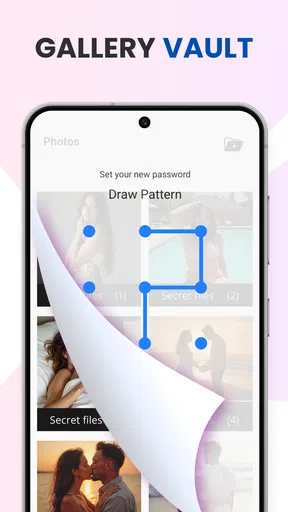
There is also a privacy decision to make. A hidden or protected area can help keep casual viewers out of selected pictures, but that is not the same as a guarantee that no one can ever access them. I’d use privacy controls as a convenience for a shared phone or an awkward moment when someone is browsing, and I would avoid treating them as a substitute for thoughtful account security or a separate secure backup.
If you mainly want to browse and sort locally, a phone’s built-in gallery may already be enough. If your main concern is synchronizing a large library across devices, a dedicated photo-storage service may be a better fit. Cloud Gallery sits between those habits: it is worth considering when you want album management and cloud-oriented handling in one photography app, rather than a full professional cataloging system.
Who is likely to get the most from it?
I’d recommend trying it if your current gallery feels too bare for everyday organization, or if you want a more deliberate place for albums and private pictures. It also makes sense for someone who takes plenty of casual photos but does not want to learn a complicated editing suite just to make small improvements. The app is rated for Everyone, so its stated age category is broad, though families should still decide for themselves how they want photos and accounts managed on a shared device.
It is less compelling for someone who already has a dependable photo workflow and is happy with it. A photographer who needs detailed file management, consistent professional color work, or a specialized editing pipeline may prefer a dedicated editor. Likewise, if you only take a few pictures and rarely revisit them, switching galleries may add setup work without solving a problem you actually have.
For a realistic use case, imagine getting home after a family gathering with pictures mixed in among screenshots and everyday camera shots. I’d put the keepers in an album while the event is still easy to remember, make modest edits to a few, and leave the rest alone. Later, when a relative asks for a particular moment, that album is a more useful starting point than scrolling through the entire camera roll. The benefit is not a dramatic transformation; it is fewer small annoyances at the moment I need a photo.
Cloud Gallery has an average rating of 4.8 from around 7.5 thousand ratings, with about 198 written reviews and over 1 million installs. Those figures suggest that many people have found it worth trying, but I would still choose it based on whether its gallery and backup approach suits my habits rather than treating popularity as a guarantee of fit.
It is free to install, with in-app purchases ranging from $0.99 to $99.99 per item. I’d look at any purchase details in the app before committing, especially if I only need basic album organization. The current version is 3.0.3, and it requires Android 8.0 or later, so an older device may not be eligible. The release date is November 6, 2023.
One useful way to test it is to begin with a small, nonessential group of pictures. Create an album, check how quickly you can find those images again, and try the cloud-related workflow before moving a large collection. That gives you a feel for whether the app matches your expectations without making your whole photo library depend on a new routine from day one.
I would also keep an eye on how the app behaves during a heavy session. Browsing a few recent photos is different from sorting a large batch, editing several images, and dealing with cloud backup at the same time. If the phone feels warm, slows down, or the battery drops noticeably, I’d pause the batch and continue later rather than assuming the gallery should handle every task at once. That is a sensible approach with any photo app, particularly on a device with limited free space or older hardware.
First Impressions and Features
As soon as I downloaded Cloud Gallery - Photo Editor, I was drawn in by its sleek and intuitive design. The app doesn't bombard you with overwhelming options right from the get-go, which is always a plus in my book. It's clean, and everything seems to be where it should be. Navigating through the app feels natural, and I didn’t find myself constantly searching for options or getting lost, which is more than I can say for some other photo apps out there.
One of the coolest features is the cloud integration. I mean, the name gives it away, right? You can save your photos directly to the cloud, which is a lifesaver if you're like me and always running out of storage. Plus, you can access your gallery from any device, which is super handy if you're switching between your phone, tablet, or even your laptop.
The photo editing tools are pretty robust too. You’ve got your standard filters, which are great, but what I really liked were the advanced editing options. You can tweak everything from brightness and contrast to hue and saturation. It even lets you play around with curves, which is something you usually only see in desktop software. For those of us who like a bit more control, this is a dream come true.
Organizing Your Photos
Now, let’s talk organization. The app does a fantastic job at helping you keep your photos organized. You can create albums, tag photos, and even add descriptions. The search function is surprisingly powerful. Just type in a keyword, and boom, you’ve got all your related photos right there. This might seem like a small thing, but trust me, it’s a game changer when you’re trying to find that one photo from last summer.
The app also has a cool feature that automatically categorizes your photos into albums using AI. It’s not perfect, but it’s pretty impressive. I found it especially useful for quickly sorting through my travel photos and family gatherings.
Sharing and Security
Sharing photos with Cloud Gallery - Photo Editor is a breeze. You can directly share your edited masterpieces to social media platforms like Instagram and Facebook, or send them to friends via messaging apps. The app also allows you to create shareable links, which is perfect for sharing albums with family and friends without having to upload them to another service.
In terms of security, the app offers some solid options. You can lock albums with a passcode, which is great if you want to keep certain photos private. The cloud storage is encrypted, so your photos are safe from prying eyes. It’s always nice to know that your memories are secure, especially in today’s digital age.
Even with those conveniences, I’d be deliberate about sharing. Before sending an album or a link, I’d check that it contains only the pictures I intend to show and that the recipient is right. A quick review matters more than speed when images include children, home details, or other personal moments. For private albums, I’d also make sure I can still reach the pictures I need without depending on memory alone; a privacy feature is most useful when it fits into a clear routine.
For edits, I’d keep the original image in mind and make changes in a way that suits the destination. A brighter crop for a social post may be fine, while a family archive benefits from preserving the less altered version too. I wouldn’t edit every image just because tools are available. A few careful adjustments can make a favorite stand out, while leaving ordinary snapshots untouched keeps the library easier to manage.
Final Thoughts
All in all, Cloud Gallery - Photo Editor is a solid app for anyone looking to organize and edit their photos on the go. It’s got a good mix of basic and advanced features, making it suitable for both casual users and those who are a bit more serious about their photography. The cloud integration and security features are just the cherry on top.
If you’re tired of your phone’s native gallery app or just looking for something with a bit more oomph, give this app a shot. It’s a nifty little tool that can make managing and editing your photo collection a whole lot easier. So, go ahead, download it and start creating your own stunning photo gallery!
My performance verdict
My overall view is that Cloud Gallery is most convincing as an everyday organizer with editing available when I need it, not as a promise that every photo task will be effortless. Its clean layout and album-centered approach make it easy to imagine using for regular browsing, while the cloud angle can help when storage and access across devices matter. For heavy editing or elaborate library maintenance, I’d still compare it with tools designed specifically for those jobs.
Before making it the home for a collection, I’d test the basics on the device I plan to use: open albums, try a modest edit, check the backup flow, and see whether the app stays comfortable during a longer session. That small trial answers practical questions about responsiveness and fit better than assuming every Android phone will behave the same way. If the routine feels natural, the app could be a useful upgrade; if it adds friction, the built-in gallery or a dedicated cloud service may be the better choice.
Pros
- User-friendly interface with intuitive navigation.
- Wide range of editing tools for creativity.
- Seamless cloud integration for easy backups.
- Supports multiple file formats including RAW.
- Fast processing speeds for editing tasks.
Cons
- Limited free storage; requires paid upgrade.
- Occasional ads disrupt editing workflow.
- No direct social media sharing option.
- Lacks advanced AI-driven editing features.
- Requires constant internet connection for cloud.
FAQs for Cloud Gallery - Photo Editor
What are the main features of Cloud Gallery - Photo Editor?
Cloud Gallery - Photo Editor offers a variety of features including cloud storage for photos, advanced editing tools like filters and adjustments, and a user-friendly interface for easy navigation. It also includes features for organizing your photos into albums, sharing directly to social media, and backing up your data securely.
Is Cloud Gallery - Photo Editor free to use?
Yes, Cloud Gallery - Photo Editor offers a free version with basic features. However, there are premium options available for users who wish to access advanced editing tools and additional cloud storage space. Subscription details and pricing can be found within the app or on the official website.
How does the cloud storage feature work in Cloud Gallery - Photo Editor?
The app provides integrated cloud storage, allowing users to store and access their photos from any device. Photos are uploaded to the cloud automatically or manually, depending on your settings. This ensures your images are safely backed up and accessible whenever you need them, even if you switch devices.
What kind of editing tools are available in Cloud Gallery - Photo Editor?
Cloud Gallery - Photo Editor includes a wide range of editing tools such as cropping, rotating, and resizing. Users can apply filters, adjust brightness, contrast, and saturation, and use advanced options like blemish removal and red-eye correction. The app is designed to cater to both beginners and more experienced photo editors.
How secure is my data on Cloud Gallery - Photo Editor?
Security is a top priority for Cloud Gallery - Photo Editor. The app uses encryption to protect your data during transfer and storage. Regular updates ensure that the latest security protocols are in place. Users are encouraged to create strong passwords and consider enabling two-factor authentication for added security.


